Use AI editing tools in Gallery on your Galaxy phone or tablet

The new editing features on select Galaxy phones and tablets will transform your favorite photos into masterpieces! Thanks to Galaxy AI, you can use features like Generative edit and Edit suggestions to move objects within your photos and automatically receive enhancement recommendations. You can also use the Galaxy Enhance-X app to take things further with more editing options that include blur removal and brightness adjustment.
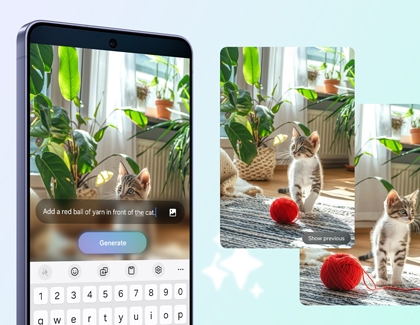
A hand holding a Galaxy S26 Ultra showing an AI prompt Add my dog below a group photo with a Corgi.

Use AI editing tools in Gallery on your Galaxy phone or tablet

Note
  • AI editing tools with Galaxy AI are available on select phones and tablets running Android 14 with One UI 6.1 or higher. If the feature is not available on your device, it may not be compatible. Ensure your device is updated.
  • Galaxy AI basic features provided by Samsung are free. Any Samsung enhanced AI features and all third party AI features are subject to different terms and may be subject to fees. (Galaxy AI basic features are listed under "Advanced intelligence" in Samsung Services Terms and Conditions.)
  • A Samsung account and internet connection is required. 
  • Editing with Generative Edit results in a resized photo up to 12MP.
  • A Galaxy AI watermark will appear on AI-generated images.

Use Photo assist

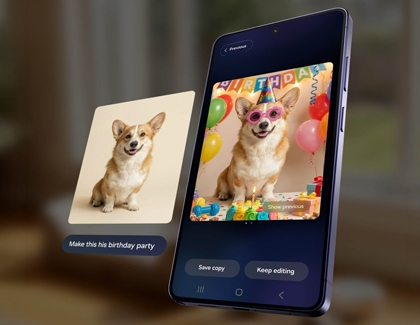
Generative Edit lets you transform your photos by moving, removing, or adding objects. You can also create new images with simple words or change the style without altering the composition.

  1. Open the Gallery app and select a photo.
  2. Tap the Edit icon (the pencil),  and then tap the Photo assist icon (the blue circle with stars).
  3. Use AI Eraser to remove objects by tapping or outlining them. Tap Erase to delete, and Return to undo.
  4. Use Move to drag objects around, rotate, or resize them. Tap Generate to fill the background.
  5. Use Create to describe changes in the text field or tap the Add from image icon to add something from another image. Tap Generate to see the magic. 
  6. Use Style to change the photo's look. Tap Generate and swipe to create more versions.
  7. When you're finished, tap Save as copy to keep your edited photo!
Read less

Use Edit suggestions

Galaxy Z Flip6 displaying edit suggestions such as Background blur and Remaster

Galaxy AI will analyze your photos and provide editing suggestions to enhance them! The individual suggestion will vary depending on the image, or there may not be any suggestions at all.

  1. Navigate to and open the Gallery app, and then select a photo you'd like to edit.
  2. Swipe upward on the photo to view the details, and then tap the available Edit suggestions on the photo. For instance, you may see options for Remaster, Live effect, or Erase reflections.
  3. Select your desired suggestion, and then follow the instructions to apply the changes. You may need to tap or draw around objects or adjust a slider bar.
Read less

Use Sketch to image

Sketch to image selected in the Gallery app.

Transform your hand-drawn sketches into high-quality, detailed images. Whether you're an artist, designer, or hobbyist, this tool helps bring your creative ideas to life with ease.

  1. Open the Gallery app, and then find and select a photo.
  2. Tap the Photo Assist icon (the blue circle with stars), tap Sketch to image. Depending on your software version, you may need to tap Create first, and then tap Sketch to image icon (the paintbrush icon with a squiggly line).
  3. Draw on the image using your finger or an S Pen. You can use the arrows to undo or redo your drawing, or use the eraser tool to erase your drawing.
    AI Generated image of a dog running through a field of flowers with a sketch of a butterfly
  4. Tap Generate. Then, swipe through the generated drawings until you find one that you like.
    List of AI generated drawings of a dog running through a field of flowers with a butterfly next to it
  5. Tap Save copy.
Read less

Use Portrait studio

Galaxy Z Fold6 displaying an AI generated image of a Woman using the Water color effect

After you’ve taken a selfie or a photo of your pet, you can add extra flair with Portrait Studio.

  1. Open the Gallery app, and then find and select your desired selfie or a pet photo.
  2. Tap the Photo Assist icon (the blue circle with stars), and then tap Portrait Studio on the image. Depending on your software version, you may need to tap Style first, and then select Photo or Portrait.
    Portrait studio button highlighted
  3. Select from the available styles at the bottom of the screen, such as Comic, 3D cartoon, or Watercolor.
  4. Then, tap Generate.
    Generate button highlighted under 3D cartoon
  5. Swipe through the generated images until you find one that you like.
    A list of AI generated images of a Woman smiling
  6. Tap Save copy.
Read less

Use Live effect

Galaxy Z Flip6 displaying a picture of a cat

Live effect will bring your photos to life with animations. The effect may differ depending on the photo.

  1. Open the Gallery app, and then find and select a photo.
  2. Swipe upward on the photo to view the details, and then tap Live effect on the photo.
    Live effect button highlighted on the lower left of the screen
  3. AI will generate the photo’s effects. You may see a zooming motion, a panning motion, or a swivel motion.
  4. You can share the generated photo by tapping Share at the bottom of the screen.
    Share icon highlighted on the lower left of the screen
  5. Or, tap Save copy.
Read less

Use Instant Slow-Mo

Note
Instant Slow-mo works on videos up to 4K resolution and 60fps.

A hand touching and holding the screen of a Galaxy S24 Ultra to activate Instant Slow-mo while playing a video

Have you ever wanted to slow down a video in order to catch a precise detail or a funny moment? You can do just that with Instant Slow-mo! This Galaxy AI feature lets you slow down a video by touching and holding your device’s screen.

  1. Navigate to the Gallery app and select a video you’d like to watch.
  2. Once the video is playing, touch and hold the screen to use Instant Slow-mo; the video will play slowly as you continue to hold the screen, as if it were recorded using Slow-mo.
  3. After touching and holding the screen to use Instant Slow-mo, tap Save slow-mo clip (the down arrow) in the top left corner.
Read less

Use Audio eraser

Auto eraser in the Gallery app

The Audio eraser feature removes unwanted background sounds from your videos in the Gallery.
  1. Navigate to and open the Gallery app, and then select your desired video.
  2. Tap Edit (the pencil icon), then tap Audio (the speaker icon) on the bottom right, and then tap Audio eraser.
    Galaxy S25 Ultra video editor with Audio eraser option highlighted and sound adjustment tools.
  3. Choose the type of sound you want to remove (e.g., Noise, Voices), and then adjust the audio levels using the slider. For automatic adjustments, tap Auto.
  4. Tap the Play icon to preview your changes. Optionally, tap Hear Original to compare with the original audio or tap Mute to silence all sounds.
  5. Once satisfied, tap Apply edits to save your changes, then tap Save copy.

Audio eraser in other apps

When viewing a video in the Video Player app, or after capturing audio in the Voice recorder app, Samsung Notes, or call recordings in the Phone app, Galaxy AI can be used to reduce all other noise and focus on enhancing voice in these apps. 

  1. Navigate to and open a video or voice recording: 
    • Open the My Files app, select a video, and then tap Video Player from the pop-up.
    • Open the Phone app, tap the More options icon (the three vertical dots), and then tap Settings. Tap Record calls, then tap recorded calls to select a voice recording.
    • Open the Voice Recorder app to select a voice memo, or open the Samsung Notes app and select a note that contains a voice recording.
  2. Tap the Audio eraser icon (it looks like an eraser with a sound wave).
  3. Galaxy AI will automatically reduce all other noise and focus on enhancing the voice(s) captured in the app.
Read less

Use Auto trim

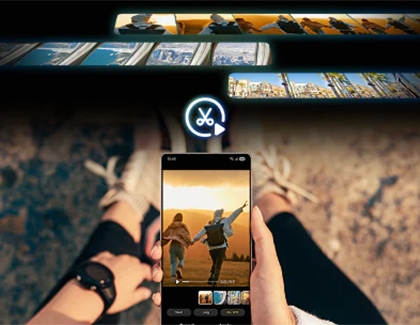
Auto trim quickly edits video by removing pauses or blank parts to save time and make your videos look polished and professional in just a few taps.

  1. Open the Gallery app, and then tap Menu (three horizontal lines) from the bottom.
  2. Tap Studio or Go to Studio, then tap Start a new project.
  3. Select the desired video(s) to edit, and then tap Done. Or, tap Search, swipe to the Shot types section, and then tap Video to choose your video(s).
  4. When the editing screen appears, tap the Auto trim icon (the scissors) in the bottom left.
  5. The Auto Trim will automatically analyze your video and suggest a trimmed version, removing unnecessary parts like pauses or blanks.
  6. Tap the Play icon to preview the changes, and then tap Apply to finalize.
  7. To reorder clips, touch and hold a clip, then drag and drop it into place.
  8. Add fun elements by tapping Text, Stickers, Draw, or Audio icons.
  9. To spice up your video with a license-free soundtrack, tap the Soundtrack icon.
  10. Preview your video by tapping the Play icon.
  11. Tap the Back icon in the top left, then tap Edit to add a title.
  12. Tap Save movie to save your video, or Delete to remove it.
Read less

Use Best face

Note
Motion photo must be turned on. Best face captures a Motion photo up to 3 seconds. Will identify and provide results for up to 5 people. Resulting image up to 12MP.
Best face is a feature designed to help you capture and select the most flattering photos of yourself or others. It intelligently analyzes multiple shots taken in a Motion photo mode and automatically selects the best one based on factors like focus, lighting, and facial expressions.
  1. Open the Gallery app, and then select the group Motion photo you want to edit.
  2. Tap More options (the three vertical dots) or swipe up on the photo instead to access additional settings. Then, tap Details. Galaxy S25 Ultra displaying a More options menu with Details highlighted in the Gallery app
  3. Tap Choose best face on the photo.
    Galaxy S25 Ultra displaying image details with Choose best face highlighted
  4. At the bottom of the screen, you’ll see various facial expressions to choose from. Select the one you prefer for your photo.
    • If you need more options, tap View more to explore additional facial expressions. Select your desired option to apply it.
    • To return to the original option, tap Previous.
      Galaxy S25 Ultra displaying facial expression options in Motion photos, with View more highlighted
  5. Once you're happy with the selected facial expression, tap Save. You can choose to Save or Save copy to keep the edited photo.
Read less

AI erase

Instantly remove unwanted objects or photobombers from your photos with AI erase, a feature that automatically detects and suggests their removal.

  1. Open the Gallery app, and then select a photo.
  2. Tap the Edit icon (the pencil), and then tap Photo Assist icon (the blue circle with stars).
  3. Tap the AI erase icon (it looks like a circle with an eraser) in the top right corner.
  4. Tap or draw around the object to remove, then tap Erase
  5. Galaxy AI will remove the unwanted detail and fill in the photo’s missing parts.
  6. If needed, tap the Previous to undo or redo your edit. 
  7. Tap Show previous to view the original picture.
  8. Tap Keep editing to make additional changes.
  9. When you're finished, tap Save copy to save your changes.
Read less

Creative studio

Creative Studio offers a range of tools for creating and editing content.

  1. Swipe inward from the right side of the screen to open the Edge panel, and then tap Creative studio.
    • Or, swipe up on the Home screen to access the Apps screen, and then tap Creative studio.
  2. Tap Add image (it looks like a picture frame), and then select a photo from your Gallery.
  3. Tap the Sketch to image icon (the paintbrush icon with a squiggly line). to access various drawing tools such as brushes, pens, and erasers. Select the tool you want to use.
  4. Tap the Styles icon (magic wand) to change the style, type a description, and then tap Generate.
  5. Tap the Decoration icon in the lower right corner to add a StickerText, or an Image, and then tap Done.
Read less

Use Galaxy Enhance-X

Note
The Galaxy Enhance-X app is supported on phones running Android 14 and One UI 6.0 and above.

Galaxy Z Flip6 displaying a before and after picture of a girl holding a puppy while using the Galaxy Enhance-X app

The Galaxy Enhance-X app is available in the Galaxy Store and will help you get even more out of your pictures. The available editing options include Brighten, Sharpen, Restore picture, Increase resolution, and more!

You can learn about Galaxy Enhance-X and how to use the app in our photos and videos article.

Read less
Was this content helpful?
Table of contents
We're here for you

Contact Samsung Support

Contact us online through chat and get support from an expert on your computer, mobile device, or tablet. Support is also available on your mobile device through the Samsung Members App.

