Edit photos or videos on your Galaxy phone or tablet

Galaxy phones and tablets are equipped with powerful cameras and a variety of shooting options to capture stunning images. However, when you need to enhance your photos further, Samsung devices offer a suite of editing tools to perfect your shots. Whether you're adjusting lighting, applying artistic filters, or removing unwanted objects, you can achieve your desired look directly from your phone or tablet.
A Galaxy phone showing a cat photo being edited with an AI generated party hat added to the cat.

Edit photos or videos on your Galaxy phone or tablet

Face effects

Note
The Face effects option will only appear when editing pictures of people or selfies.

Have a selfie that needs a little more TLC? You can use the Face effects options to remove red-eye, brighten your skin tone, and even enlarge your eyes.

  1. Navigate to and open the Gallery app, and then select the picture you want to edit.
  2. Tap the Edit icon (the pencil), then tap the Tools icon (the four circles), and then tap Face effects.
    A Galaxy phone showing the Gallery editor with Face effects option highlighted in blue among other editing tools.
  3. You can select from a variety of editing options, such as Smoothness, Tone, and Red-eye fix.
    A Galaxy phone showing the Reshape tool with a slider and value set to 10, with Cancel and Done buttons below.
  4. After tapping an option, follow the instructions on the screen or adjust the slider to choose your preferred intensity. For instance, Spot fixer will let you remove blemishes by tapping on areas of a person's face.
    A Galaxy phone showing the Smoothness tool with a slider highlighted in blue and value set to 5, with Cancel and Done buttons.
    Note: You can tap the arrows to undo or redo your edit.
  5. When you’re finished editing, tap Done.
  6. If you need to start over, tap Revert, and then tap Revert to original.
    A Galaxy phone showing a dialog box asking to undo all changes with Cancel and Revert to original buttons, Revert to original highlighted in blue.
  7. To save your newly edited picture, tap Save, and then tap Save again.
    A Galaxy phone showing a photo of a smiling woman in an office setting with Revert and Save options at the top, Save highlighted in blue.
    Note: You can also keep the original picture by tapping More options (the three vertical dots), and then tapping Save as copy.
Read less

Spot color

Spot color lets you add or remove color. Maybe you want to draw attention to a single object; just remove the surrounding color so the subject of your picture really stands out.

  1. Navigate to and open the Gallery app, and then select the picture you want to edit.
  2. Tap the Edit icon, then tap the rightmost icon (the four circles), and then tap Spot color. The image will turn black and white; tap an area where you want to reveal the color.
  3. To remove the color, tap the Remove color icon in the center (the dropper with a minus symbol), and then tap the desired area of the picture. To add more color, tap the Add color icon (the dropper with a plus symbol).
  4. To manually erase color, tap the Erase color icon (it looks like an eraser) and then adjust the slider to your desired size. Then, swipe on the picture with your finger.

    Note: You can tap the arrows to undo or redo your edit.
    Erase color icon highlighted on a Galaxy phone
  5. When you're finished editing, tap Done.
  6. If you need to start over, tap Revert, and then tap Revert to original.
  7. To save your newly edited picture, tap Save, and then tap Save again.

    Note: You can also keep the original picture by tapping More options (the three vertical dots), and then tapping Save as copy.
Read less

Filters

Create custom filters inspired by your favorite photos and apply them instantly to new images with the Filters feature.

To create a customer filter:

  1. Navigate to and open the Gallery app, and then select the photo you want to edit.
  2. Tap the Edit icon, then tap the Filters icon (the three circles).
    A Galaxy phone showing the Gallery editor with the Filters option highlighted in blue and a row of filter previews using a woman's photo.
  3. Tap the Customer filters icon (the plus sign), select a photo to use as a filter, and then tap Create.
    A Galaxy phone showing a photo grid with All photos and Create buttons at the bottom, Create highlighted in blue.
  4. Rename the filter by tapping its name, entering a new name, and then tapping Rename.
    A Galaxy phone showing a text field with the name purple entered and Cancel and Rename buttons, Rename highlighted in blue.
  5. Once you're finished, tap Done.
    A Galaxy phone showing a purple gradient image preview labeled purple with Previous and Done buttons, Done highlighted in blue.

To apply a filter in the Camera app:

  1. Open the Camera app and select PHOTO.
  2. Tap the Filters icon (the three circles) in the top right corner. Alternatively, you can tap the Quick control icon (the four circles) below the Viewfinder, and then tap the Filters icon.
    A Galaxy phone showing the Camera app in Photo mode with the Filters icon highlighted in blue in the top toolbar.
  3. Swipe to and select your filter. Tap the center of the filter to adjust the intensity. 
  4. Tap View original to compare.
    A Galaxy phone showing the Camera app with a row of filter previews of a dog photo, Crystal filter selected, and View original button highlighted in blue.
  5. Tap the Capture icon (the white circle) to take the photo using the filter.
    A Galaxy phone showing the Camera app in Photo mode with the shutter button highlighted in blue and zoom options displayed.
  6. Tap the thumbnail in the bottom left to open your picture in the Gallery app.
    A Galaxy phone showing the Camera app in Photo mode with a filtered dog photo thumbnail highlighted in blue in the bottom left corner.

To apply the filter in the Gallery app:

  1. Open a photo in the Gallery.
  2. Tap the Edit icon (the pencil), and then tap the Filters icon (three circles).
    A Galaxy phone showing the Gallery with a row of photo thumbnails and the Edit icon highlighted in blue in the bottom toolbar.
  3. Swipe to and select your filter. Tap the center of the filter to adjust the intensity.
    A Galaxy phone showing the Gallery editor with Aura film filter selected and highlighted in blue in a row of filter previews of a woman's photo.
  4. When you're finished, tap Save.
    A Galaxy phone showing the Gallery editor with a woman's photo and Revert and Save buttons at the top, Save highlighted in blue.
Read less

Color mix

Sometimes, a picture's colors may not look how you want them to. In this case, you can use the Color mix options to change up different colors' intensity in your pictures.

  1. Navigate to and open the Gallery app, and then select the image you want to edit.
  2. Tap the Edit icon, then tap the rightmost icon (the four circles), and then tap Color mix.
  3. Tap your desired color at the bottom of the screen to begin editing. You can adjust the slider to increase or decrease the color's intensity.
    A smartphone screen displaying a photo editing app with a saturation adjustment slider and color options. The background image on the screen shows a scenic canyon view under a starry night sky, with colored pencils placed next to the phone.
  4. Tap Hue, Saturation, or Luminance and then adjust the slider to add your desired effects.
  5. You can tap as many colors as you like to edit the image's colors. To add your own colors, tap the dropper tool icon, and then tap the desired area that has the color you want. The color will be added to the palette at the bottom of the screen.

    Note: You cannot add more than three custom colors.
  6. When you're finished editing, tap Done.
  7. If you need to start over, tap Revert, and then tap Revert to original.
  8. To save your newly edited image, tap Save, and then tap Save again.

    Note: You can also keep the original image by tapping More options (the three vertical dots), and then tapping Save as copy.
Read less

Portrait mode

Not only can you get stunning pictures of yourself and others with Portrait mode, but you can add effects before taking the picture! Plus, continue editing the picture to your heart's content using various lighting and filter options.

  1. Navigate to and open the Camera app, and then tap PORTRAIT. You can add effects before taking the picture by tapping the Portrait Effects icon in the right corner below the Viewfinder.
  2. Then, select from Blur, Studio, High-Key Mono, Low-Key Mono, Backdrop, or Color Point.
  3. Adjust the Effect strength slider below the Viewfinder until the filter looks just right.
    Portrait image being taken of a man with black jacket and sunglasses on with Galaxy S22 Ultra
  4. You can also tap the Lighting icon (the sun) on the top right side of the Viewfinder to increase or decrease the brightness.
  5. When you're ready, tap the Capture icon (the white circle).
  6. Next, tap the thumbnail in the bottom left to open your picture in the Gallery app. Tap the Edit icon(the pencil) to begin editing your picture.
  7. There are several editing options to choose from! For instance, you can rotate or flip your picture, change the aspect ratio, adjust the horizontal or vertical axis, or draw on a section of the picture to crop it. You can also add additional filters, change the light balance and exposure, and even add stickers and text.
    Editing options of a picture on Galaxy S22 Ultra
  8. When you're finished editing, tap Done.
  9. If you need to start over, tap Revert, and then tap Revert to original.
  10. To save your newly edited picture, tap Save, and then tap Save again.

    Note: You can also keep the original picture by tapping More options (the three vertical dots), and then tapping Save as copy.
Read less

Galaxy AI editing tools

Galaxy Z Trifold fully unfolded, showcasing a photo of two kids with editing tools applied.
Explore Galaxy AI editing tools to transform your photos with features like Photo assist, Sketch to image, Edit suggestions, Audio eraser, Best face, Auto trim, and more. Visit the Use AI editing tools in Gallery on your Galaxy phone or tablet page for detailed steps and make your images stand out effortlessly.
Read less

Additional photo and video editing tools

You can edit your photos and videos even further with the Gallery app's editing options, like changing a photo’s perspective or adding a filter. Or, create your own custom stickers and GIFs!
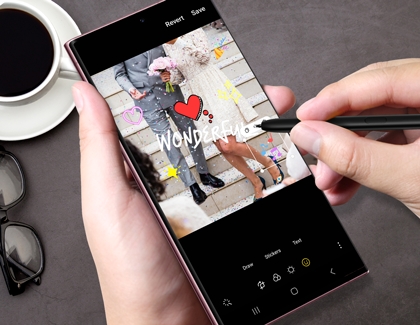
Create Custom Sticker and GIFs on the photo or video

Navigate to and open the Gallery app, and then select the image or video you want to edit. Tap the Edit icon (the pencil).

The following are some of the available options when editing photos and videos:

  • Transform: Tap the Transform icon (it looks like a right arrow with a square), and use settings such as Flip, Rotate, Ratio, or Adjust angle to fine-tune your photos.
  • Filter: Tap the Filter icon (it looks like three circles), and then swipe left or right to choose your desired filter. You can adjust the intensity using the slider. Tap Add (the plus sign) to download a filter or create your own.
  • Tone: Tap the Tone icon (the sun), and then adjust your desired setting using the slider. You can select from options like Brightness, Exposure, Contrast, and Highlights.
  • Decorations: Tap the Decorations icon (the smiley face), and then tap Draw to draw on your photo. You can select from different writing tools and colors as well. Tap Stickers to add preloaded or custom stickers to your image, and tap Text to type on your image using the keyboard.
  • Lasso: Tap the Quick controls icon (the four circles), then tap Lasso, and then draw around the area you want to keep. You can select from Free-form or Shape.

The following are also available options when editing videos:

  • Audio: Tap the Audio icon (the speaker), and then adjust the video volume using the slider. Tap Add background music or Add soundtrack to select a background track. Tap Audio eraser to filter out or fine-tune background voices, wind, and noise.
  • Trim: Tap the Trim icon (the scissors), and then trim your video using the slider.
Read less

Set photos and videos as wallpapers

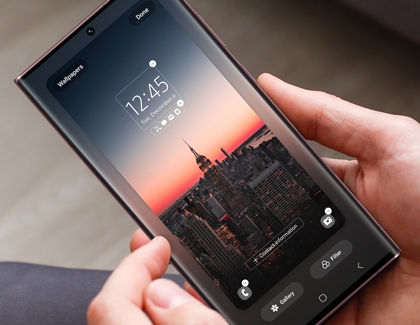
Hands holding a Galaxy S24 Ultra displaying the wallpaper background customization options
On Galaxy devices running One UI 6, you can set your favorite picture or video as your Lock screen wallpaper background. You'll need to have a Lock screen set up to use this feature, but once you do, you can show off any of your Gallery's pictures or videos.
Read less
Was this content helpful?
Table of contents
We're here for you

Contact Samsung Support

Contact us online through chat and get support from an expert on your computer, mobile device, or tablet. Support is also available on your mobile device through the Samsung Members App.