How to Set Up a Samsung Soundbar Subwoofer?
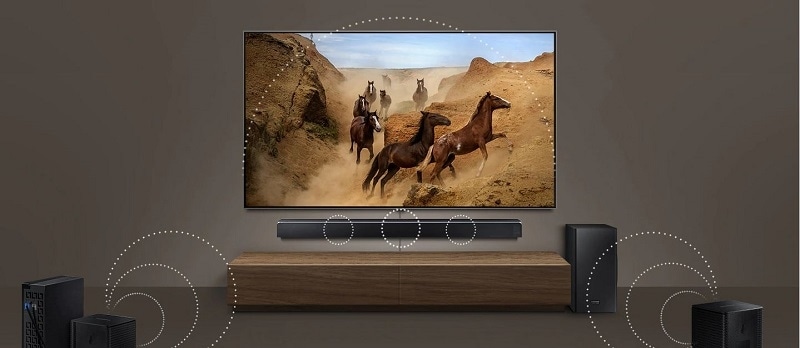
Setting up your Samsung home theater and soundbar subwoofer speaker is straightforward and enhances your TV audio experience. Follow these steps to connect your soundbar using HDMI, HDMI ARC, optical, or Bluetooth for seamless sound quality.
1. How to Connect Your Samsung Soundbar Using HDMI
- Turn off your TV, soundbar, and connected device (e.g., cable box or gaming console).
- Connect one end of an HDMI cable to any HDMI port on your TV and the other end to the HDMI OUT port on your soundbar.
- Connect a second HDMI cable from the HDMI OUT port on your device to the HDMI IN port on your soundbar.
- Turn on your device, soundbar, and TV. Use the Source or Function button on your soundbar remote to switch to HDMI.
- On your TV, select the HDMI port connected to the soundbar as the input source.
- Enable Anynet+ on your soundbar by pressing the right navigation button on the remote.
- Enable Anynet+ (HDMI-CEC) on your TV by navigating to Settings > General > External Device Manager > Anynet+.
- Check your device's manual to enable HDMI-CEC settings for universal control.
- Ensure your soundbar supports 4K pass-through if your device is 4K-compatible.
2. How to Connect Your Samsung Soundbar Using HDMI ARC
- Power on your TV and soundbar.
- Connect one end of an HDMI cable to the HDMI IN (ARC) port on your TV and the other end to the HDMI OUT (TV-ARC) port on your soundbar.
- Set your soundbar's source to D.IN using the remote.
- Wait for "TV ARC" to appear on the soundbar's display, indicating successful ARC connection.
- HDMI ARC allows audio to flow both ways, simplifying connections but limiting available HDMI ports.
3. How to Connect Your Samsung Soundbar Using an Optical Cable
- Turn on your TV and soundbar.
- Connect one end of a digital optical cable to the OPTICAL OUT port on your TV and the other end to the DIGITAL AUDIO IN (OPTICAL) port on your soundbar.
- Set your soundbar's source to D.IN using the remote.
- On your TV, navigate to Settings > Quick Settings > TV Speaker and select Optical (external speakers).
- Optical connections are reliable but may not support advanced audio formats like Dolby Atmos.
4. How to Connect Your Samsung Soundbar Using Bluetooth
- Press the Pair button on your soundbar remote or cycle through sources until the display shows "BT."
- Hold the source button until the display changes to "BT Pairing."
- On your TV, navigate to Sources > Connection Guide and follow the on-screen instructions to pair via Bluetooth.
- Alternatively, go to Settings > Sound > Sound Output > Bluetooth Speaker List and select your soundbar.
- Bluetooth offers convenience but may experience interruptions due to interference or power outages.
5. Additional Things to Check
- Ensure your soundbar firmware is updated for compatibility with newer devices.
- Verify that your TV supports the chosen connection method (e.g., HDMI ARC, optical).
- If audio issues persist, test the soundbar with another device to rule out hardware problems.
6. Supported Samsung Galaxy Devices
This guide applies to Samsung soundbars and home theater systems compatible with Galaxy TVs and external devices like the Galaxy S24, S25, and S26 series.
7. Related Samsung Support Topics
Thank you for your feedback!
Please answer all questions.