What to do if the proximity sensor is not working
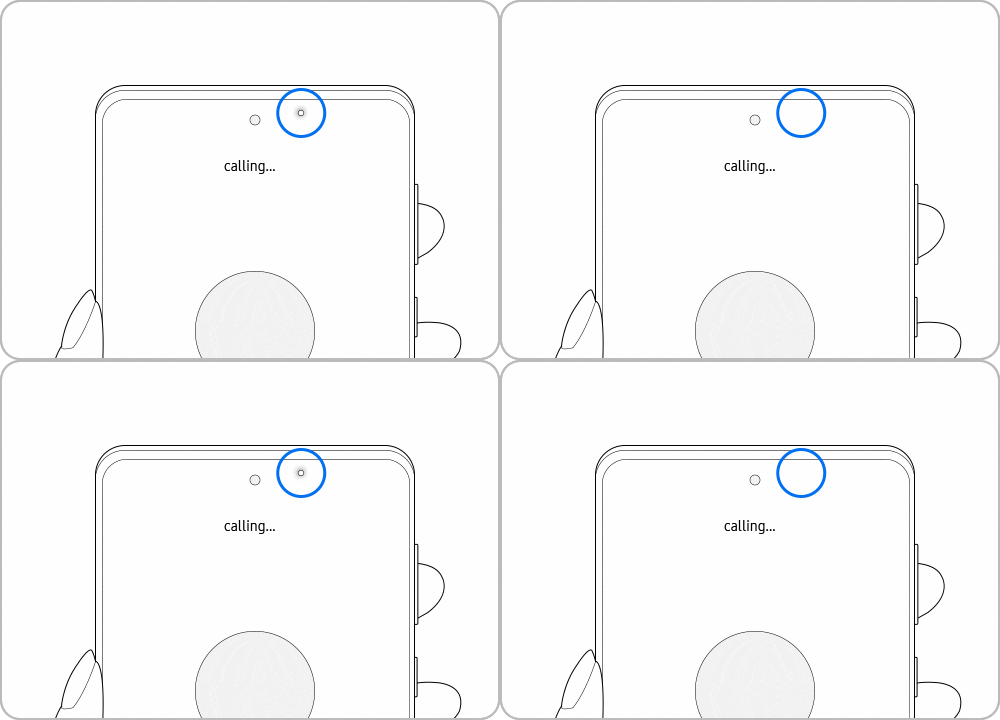
If your Samsung Galaxy phone's screen isn't turning off during calls, the proximity sensor may not be working properly. This can happen due to blocked sensors, outdated software, or incompatible accessories. Follow these steps to diagnose and fix the issue.
1. Why is the proximity sensor not working on my Samsung Galaxy phone?
The proximity sensor on your Samsung Galaxy device is designed to turn off the screen when the phone is held to your ear during a call. If it's not working, the screen may stay on, leading to accidental touches or battery drain. Common causes include:
- Blocked sensor due to screen protectors, cases, or dirt.
- Static electricity from hair or accessories interfering with the sensor.
- Outdated software or app conflicts.
- Hardware issues or internal sensor placement in newer models.
2. Where is the proximity sensor located on my Samsung Galaxy device?
The proximity sensor is typically located at the top of the front screen, though its exact position varies by model. For example:
In the Galaxy S21 series and later models with Infinity Displays, the sensor is internally placed within the top inner part of the screen. In some cases, a faint blinking light may appear at the top of the screen when the sensor is active—this is normal and not a defect.
3. How do I fix a malfunctioning proximity sensor on my Samsung Galaxy phone?
- Turn off Double Tap to Wake: If the screen stays on during calls, disable the "Double tap to turn on screen" feature in Settings > Advanced features > Motions and gestures.
- Clean the sensor area: Use a soft, lint-free cloth to gently clean the top of the screen where the sensor is located. Avoid using harsh chemicals.
- Test the sensor: Open the Samsung Members app, go to Service Center > Phone diagnostics > Proximity sensor, and follow the on-screen instructions to test functionality.
- Remove accessories: Take off screen protectors, cases, or stickers that might block the sensor. Use Samsung-authorized accessories for optimal compatibility.
- Restart your device: Swipe down from the top of the screen, tap the Power icon, and select Restart. This can resolve temporary software glitches.
4. Additional things to check
- Ensure your device's software is up to date (Settings > Software update).
- Avoid using speakerphone or Bluetooth earbuds during testing, as the sensor is disabled in these modes.
- Check for hair or static buildup near the sensor, especially if you frequently use headbands or scarves.
5. Supported Samsung Galaxy devices
The proximity sensor troubleshooting steps apply to most Samsung Galaxy devices, including:
Galaxy S24, Galaxy S25, Galaxy S26, Galaxy Z Fold, Galaxy Z Flip, and Galaxy A series.
6. Related Samsung support topics

Note:
- Before you try the recommendations above, be sure to check if your device's software and related apps are updated to the latest version.
- For further assistance or questions, please contact us.
Thank you for your feedback!
Please answer all questions.