How do I record my screen on a Galaxy phone?
You can easily record your Samsung Galaxy screen or capture screenshots using built-in features available on devices with One UI 2 or later. These tools allow you to record gameplay, create tutorials, or share moments directly from your device.
1. How to Record Your Samsung Galaxy Screen
To record your screen, follow these steps:
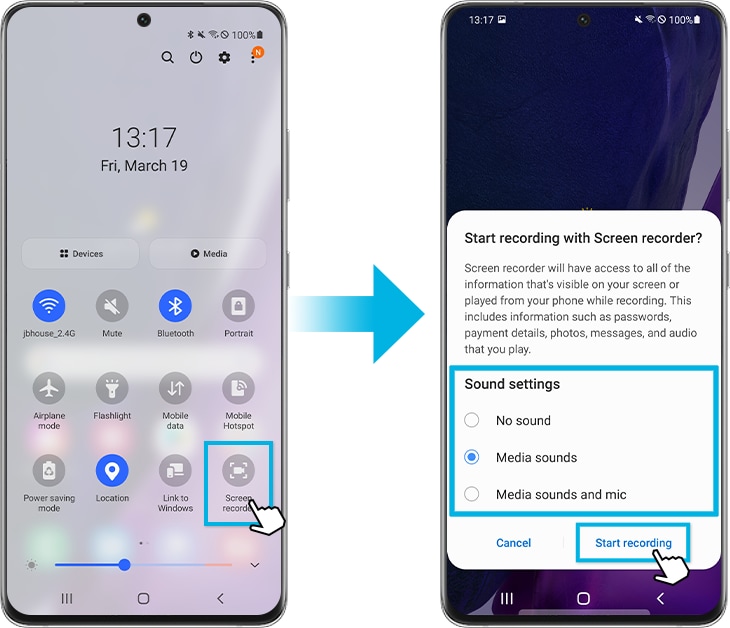
- Open the Quick settings panel by swiping down from the top of the screen.
- Tap Screen recorder to activate it.
- Select a sound settings option (e.g., microphone, media sound, or no sound) and tap Start recording. Recording begins after a countdown.
- During recording, use the control panel that appears in the upper right corner:
- Tap the Pencil icon to draw or write on the screen.
- Tap the Person icon to add a video overlay of yourself.
Note: Some apps may block screen recording due to copyright restrictions.
2. How to Add Screen Recorder to the Quick Panel
If you don't see the Screen recorder in your Quick panel, follow these steps to add it:
- On the Quick panel, tap More (three vertical dots) and select Edit buttons. If you don't see More, swipe left and tap the Plus icon.
- Find Screen recorder in the Available buttons section and touch and hold it to move.
- Drag and drop Screen recorder to the Quick panel, then tap Done.
Now, you can access the Screen recorder directly from the Quick panel.
3. How to Capture a Screenshot on Your Samsung Galaxy
To capture a screenshot, press and hold the Side key and the Volume Down key simultaneously. After capturing, use the toolbar at the bottom of the screen:
- Scroll capture: Tap the icon to capture the current screen and hidden content on an elongated page, such as a webpage.
- Edit: Write, draw, or crop the screenshot. The cropped area will be saved in your Gallery.
- Tag: Add tags to organize your screenshots.
- Share: Share the screenshot with others.
Note: Some apps may block screenshots due to copyright restrictions.
4. How to Customize Screen Recorder and Screenshot Settings
You can adjust settings for screen recording and screenshots:
- Open Settings.
- Select Advanced features.
- Select Screenshots and screen recorder.
- Control each option as needed, such as:
- Screenshot toolbar and format.
- Sound, video quality, and selfie video size for screen recording.
Note: Screenshots and menu may vary depending on your device model and software version.
5. Supported Samsung Galaxy Devices
The Screen recorder and Screenshot features are available on Galaxy devices with One UI 2 or later, including:
Galaxy S24, Galaxy S25, Galaxy S26, Galaxy Z Fold, Galaxy Z Flip, and Galaxy A series.
6. Related Samsung Support Topics
Thank you for your feedback!
Please answer all questions.