Why won't my Galaxy phone update its software?
Why is my Samsung Galaxy device not updating software?
If your Samsung Galaxy device isn't updating to the latest software version, it could be due to insufficient storage, an unstable internet connection, or conflicts with third-party apps. Follow these steps to resolve the issue and ensure your device stays up-to-date.
1. Why is my Samsung Galaxy device not updating software?
Software update issues commonly occur after interrupted downloads, unstable network connections, or low storage warnings. These problems can prevent your Samsung Galaxy device from receiving or installing the latest software updates.
2. How to free up storage space on your Samsung Galaxy device
Insufficient storage is one of the most common reasons why software updates fail. Here's how to free up space:
- Press and hold the app icon you want to remove, then tap Uninstall.
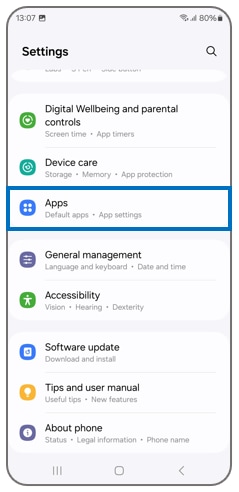
- Go to Settings > Apps, select the app, and tap Uninstall.
- Clear cached data by going to Settings > Device Care > Storage > Clean now.
3. How to clear the cache on your Samsung Galaxy device
Clearing the cache can resolve software update issues caused by corrupted temporary files. Follow these steps:
- Go to Settings > Device Care > Storage.
- Tap Clean now to remove cached data and free up space.
4. How to update your Samsung Galaxy device in Safe mode
If your device has enough storage but still won't update, try updating in Safe mode to rule out third-party app conflicts:
- Press and hold the Power button and tap Restart.
- Hold the Volume Down button until you see Safe mode appear on the screen.
- Attempt the software update again.
- To exit Safe mode, restart your device normally.
5. How to use Smart Switch to update your Samsung Galaxy device
Smart Switch is a reliable method for updating your device's software. Follow these steps:
- Connect your Samsung Galaxy device to a computer using the USB cable included with your device.
- Open Smart Switch on your computer and allow it to detect your device.
- If an update is available, click Update and follow the on-screen instructions.
- Do not disconnect the USB cable or use your device until the update is complete.
6. Additional things to check
- Ensure your internet connection is stable. Use Wi-Fi instead of mobile data for faster and more reliable updates.
- Check if your device is eligible for updates. Software updates are typically available for a limited time after the device's release.
- Restart your device before attempting the update again. This can resolve temporary glitches.
7. Supported Samsung Galaxy devices
These troubleshooting steps apply to most Samsung Galaxy devices, including the Galaxy S24, Galaxy S25, Galaxy S26, Galaxy Z Fold, Galaxy Z Flip, and Galaxy A series. Always check your device's software version for compatibility.
8. Related Samsung support topics

Thank you for your feedback!
Please answer all questions.