How to connect Galaxy Buds to other devices
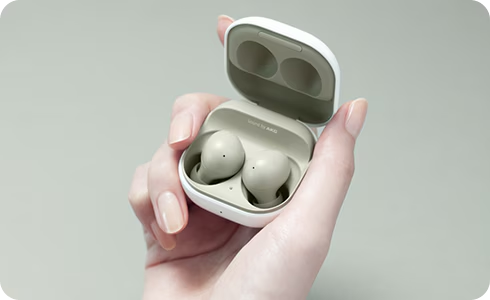
Samsung Galaxy Buds can be easily connected to various devices using Bluetooth. Whether you're using a Samsung Galaxy phone, a non-Samsung Android device, an iPhone, or even a TV or PC, this guide provides step-by-step instructions for seamless pairing and connection.
1. How to Connect Samsung Galaxy Buds to a Samsung Galaxy Device
Pairing Galaxy Buds with a Samsung Galaxy device is straightforward:
- Ensure the Galaxy Buds' charging case is fully charged.
- Download the latest version of the Galaxy Wearables app from the Galaxy Store.
- Open the charging case with the earbuds inside.
- The earbuds will automatically enter pairing mode and connect to your device.
-Once paired, the earbuds will automatically reconnect every time you open the charging case.
2. How to Connect Samsung Galaxy Buds to a Non-Samsung Android Smartphone
To pair Galaxy Buds with a non-Samsung Android device:
- Download the Galaxy Wearable app from the Google Play Store.
- Sign in to your Samsung account.
- Open the charging case with the earbuds inside.
- Open the Galaxy Wearable app and follow the on-screen instructions to pair your earbuds.
-Ensure your device allows access to the Galaxy Wearable app for successful pairing.
3. How to Connect Samsung Galaxy Buds to an iOS Device
For iPhone users, follow these steps:
- Open the charging case with the earbuds inside.
- Go to Settings > Bluetooth and turn it on.
- Select your Galaxy Buds from the "Other Devices" list to connect.
-Some models may require pressing the button on the charging case for three seconds to enter pairing mode.
4. How to Connect Samsung Galaxy Buds to a TV or PC
To pair Galaxy Buds with a TV or PC:
- Enable Bluetooth on your TV or PC and select "Add Device."
- Open the charging case with the earbuds inside.
- Select your Galaxy Buds from the list of connectable devices.
-Connection capability may vary depending on your device's Bluetooth functionality and software version.
5. Supported Samsung Galaxy Devices
Galaxy Buds are compatible with Samsung Galaxy devices, including the Galaxy S24, Galaxy S25, Galaxy S26, Galaxy Z Fold, Galaxy Z Flip, and Galaxy A series.
6. Additional Things to Check
-Ensure your Galaxy Buds' firmware is updated for optimal performance.
-If pairing fails, close and reopen the charging case to restart the pairing process.
-For Galaxy Buds3 series, press the pairing button on the charging case for at least three seconds to enter pairing mode.
7. Customizing Galaxy Buds Settings
Through the Galaxy Wearables app, you can customize features like:
-Equalizer settings for personalized sound.
-Earbud fit test for optimal comfort.
-Ambient sound during calls for clearer conversations.
-Seamless earbud connection for quick switching between devices.
8. Using Touch Gestures on Galaxy Buds
Galaxy Buds3 series and later models support advanced touch gestures:
-Pinch to play/pause music or answer/end calls.
-Swipe up and down to adjust volume.
-Double or triple pinch to skip tracks.
For earlier models, tap, double-tap, or touch and hold to control music and calls.
Related Samsung Support Topics
Thank you for your feedback!
Please answer all questions.